Setup your DRS 1000
For the vape detector to connect and operate correctly, please ensure that the wireless network meets the following requirements:
- 2.4 GHz Wi‑Fi is enabled (5 GHz-only networks are not supported).
- Client isolation / AP isolation is disabled to allow communication between the mobile device and the vape detector (during setup)
- The network uses WPA2-PSK (WPA2 Pre-Shared Key) security, as this is the supported wireless authentication method for the devices.
These settings are required to ensure reliable communication between the vape detector, the mobile application, and the wireless network.
Before setting up your DRS 1000, please download the Tuya app from your Apple or Google Play Store.
Pairing your DRS 1000
1. Connect the device using the supplied 12V Power Supply and and wait for approximately 2-5 mins for the red led to stop flashing.
(Make sure the device is switched on with the switch underneath)
2. Open Tuya app and tap “+” in the top right of the window
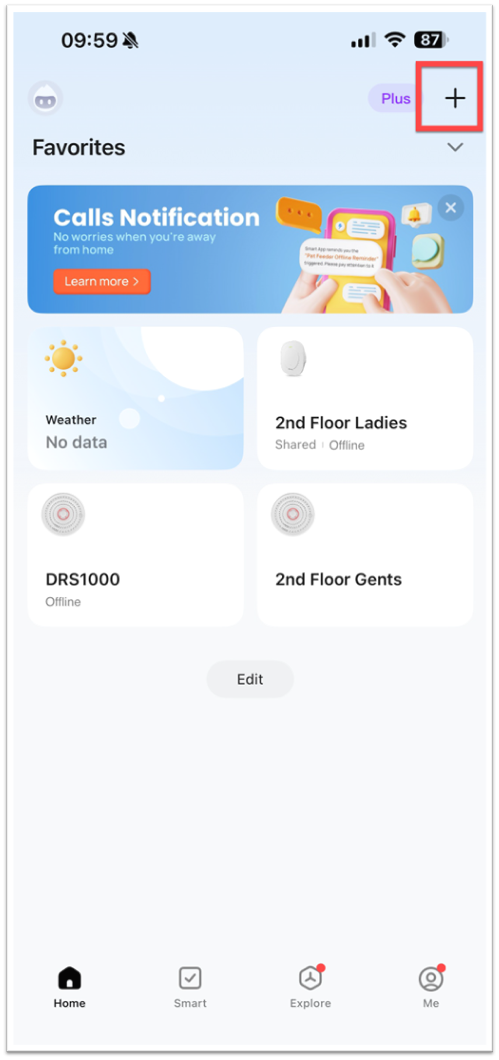
4. Tap “Add Device”
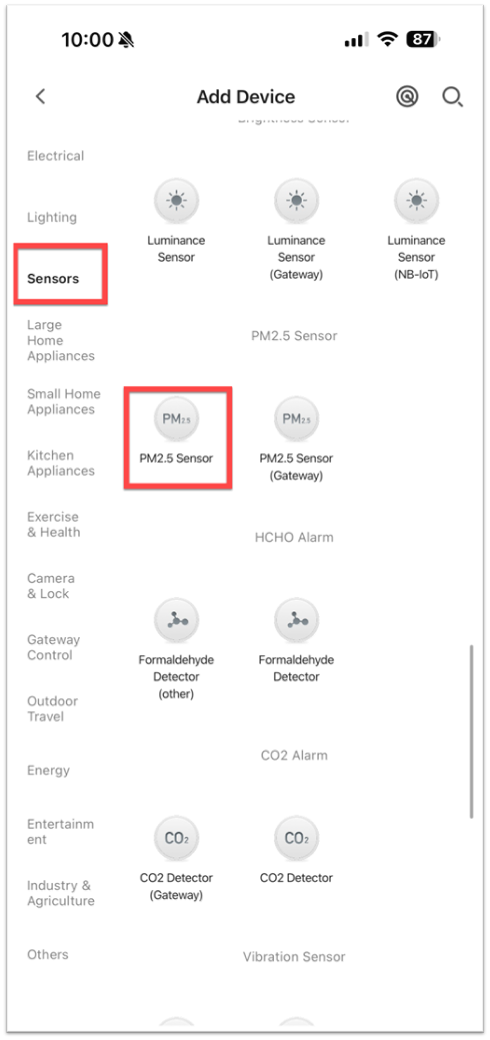
5. Now your are on the add device page, scroll down to “Sensors” and find “PM2.5 Sensor” section.
6. Choose “PM2.5 Sensor”
7. Select “Other Modes” in the top right then select “Wi-Fi”
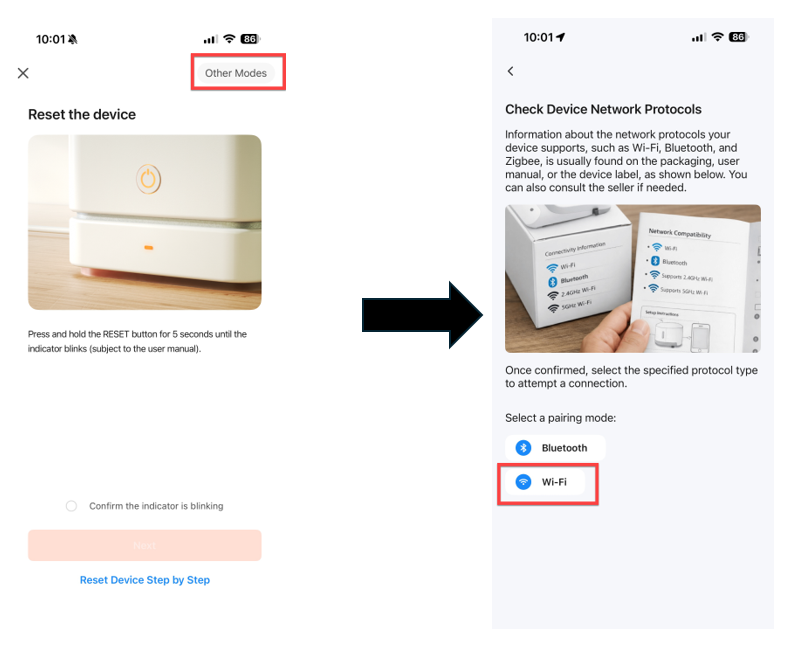
8. Now Press and Hold the button on front of DRS 1000 until you see the green led flashing
(It will continue to flash for approximately 2 mins)
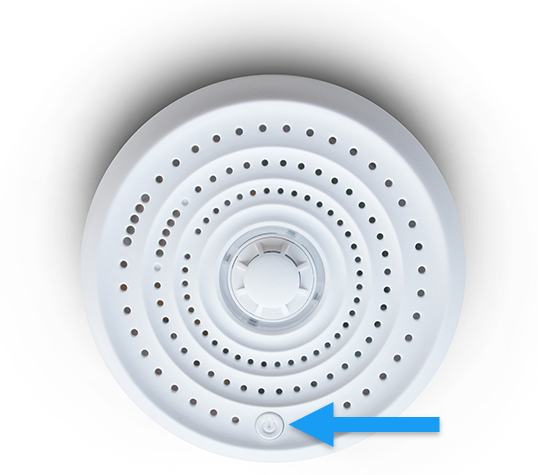
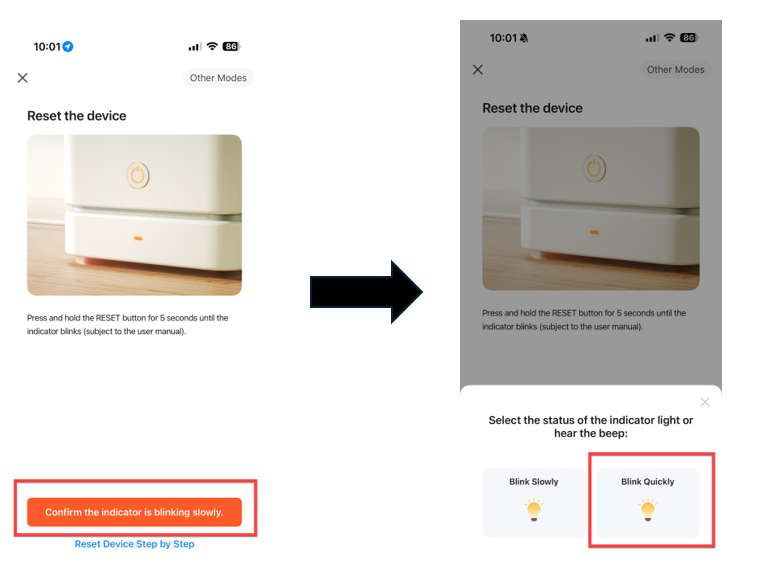
9. Once flashing green go back in the Tuya app tap “Confirm the indicator is blinking” before then tapping press “Blink Quickly”
10. Select and enter Wi-Fi details of the network you would like the device to connect to.
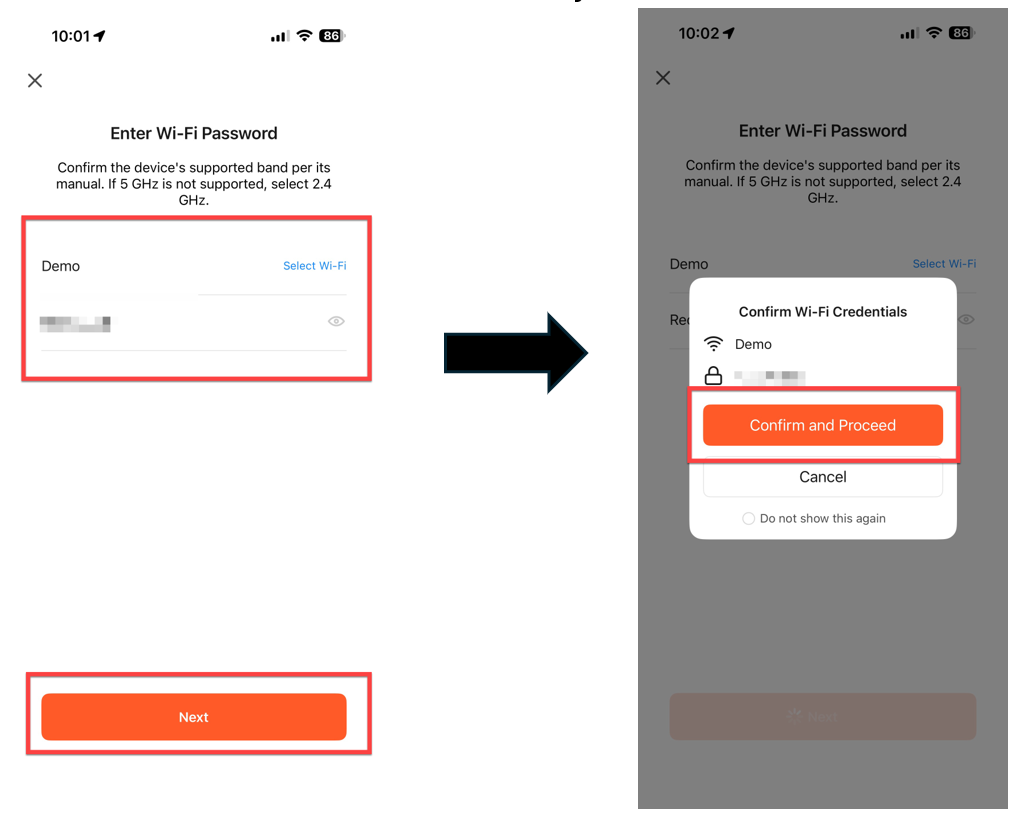
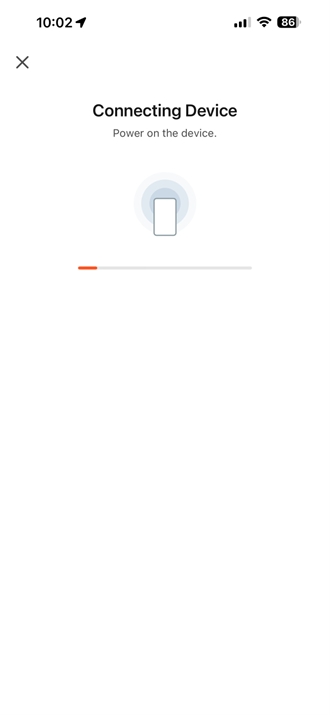
11.Once you have followed these steps the App will then pair up with the DRS 1000 vape detector.